Introduction
Since the introduction of Windows 10 Fall Creators Update, it's possible to run Ubuntu natively on Windows 10. However, there are limitations to running Ubuntu natively on Windows, such as being restricted to using the command-line interface.
Hyper-V offers a built-in way of creating and managing virtual machines on Windows 10. It allows you to install a distribution of Linux, including Ubuntu.
In this tutorial, we will go over the step-by-step process of installing Ubuntu 20.04 on a virtual machine using Hyper-V on Windows 10.
Prerequisites
- A system running Windows 10
- An account with administrator-level privileges
Hyper-V Ubuntu Installation Guide
Following the steps outlined below, you can enable Hyper-V and start using it to create an Ubuntu virtual machine:
Note: If you'd like to find out more about virtual desktop solutions, check our guide to VDI environments.
STEP 1: Enable Virtualization in BIOS
Using Hyper-V requires virtualization enabled in the motherboard's BIOS. The exact steps of this process will vary depending on the model of your motherboard.
1. Open the BIOS by rebooting your computer and pressing the BIOS button (F1, F2, F10, F12, or Delete, depending on the motherboard model) when prompted.
2. The virtualization settings are located under the CPU or Advanced BIOS Settings category, depending on your system.
Note: The virtualization settings have different names on different systems. Look for items like Hyper-V, SVM, Vanderpool, VT-X, Intel Virtualization Technology, or AMD-V.
3. Once you enable the appropriate settings, use the Save and Exit option to confirm the changes.
STEP 2: Enable Hyper-V
Before setting up the virtual machine, you need to enable Hyper-V in Windows settings:
1. Open the Windows Start menu, and select the Settings window.
2. Click the Apps tile to open application settings.
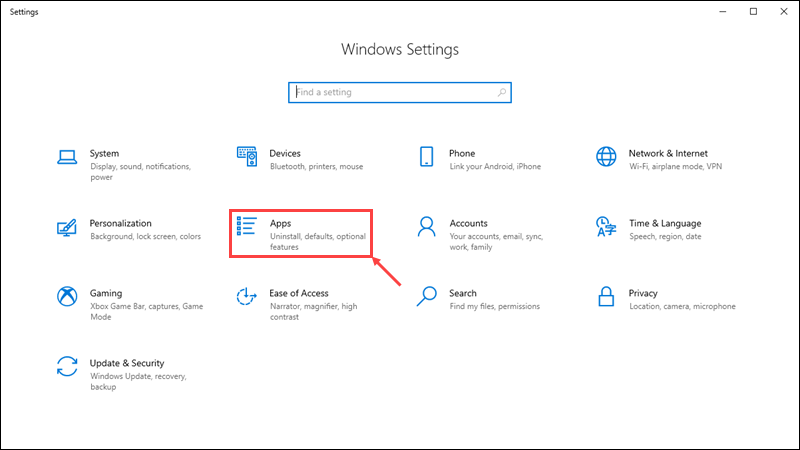
3. On the right-hand side, click the Programs and Features link.
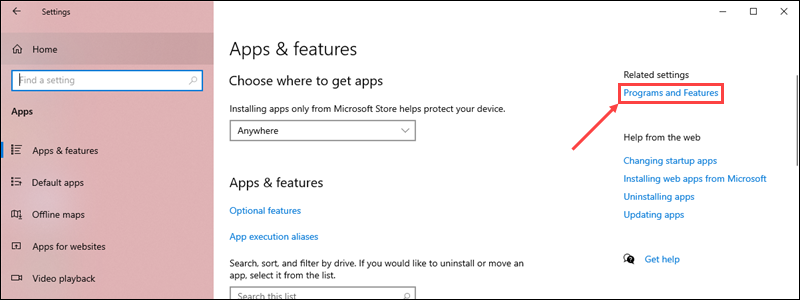
4. In the Programs and Features window, click the Turn Windows features on or off link on the left-hand side.
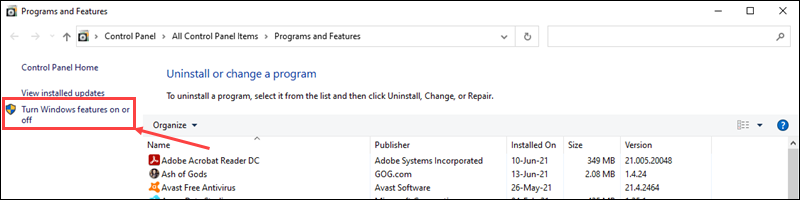
5. Scroll down and check the Hyper-V option, along with the Hyper-V Management Tools and Hyper-V Platform sub-options.
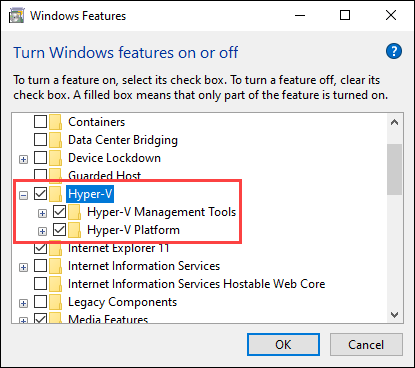
6. Click OK to confirm the changes.
7. Restart your computer.
STEP 3: Create a Virtual Switch
After enabling Hyper-V, create a virtual network switch for the virtual machine to use:
1. In the Start menu, navigate to the Windows Administrative Tools folder and open Hyper-V Manager.
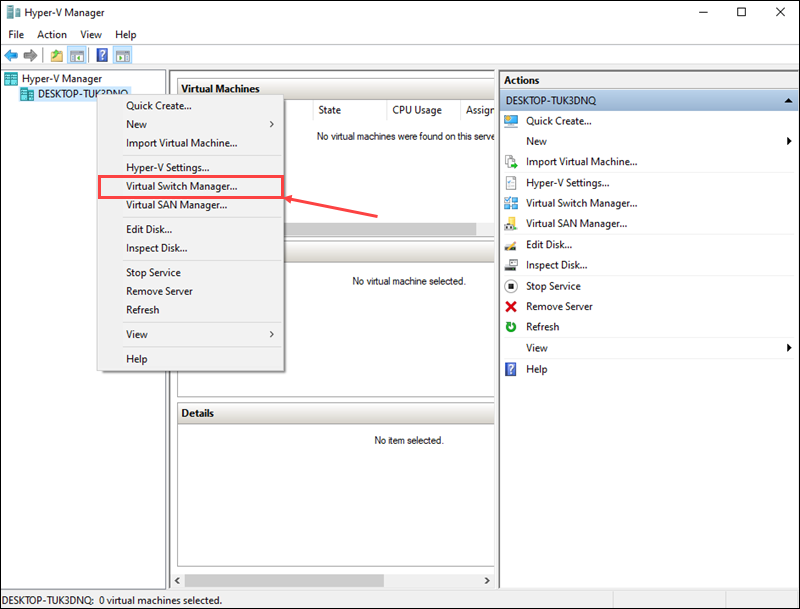
2. Right-click on the name of your system on the left-hand side of the Hyper-V Manager window. Select the Virtual Switch Manager option from the drop-down menu.
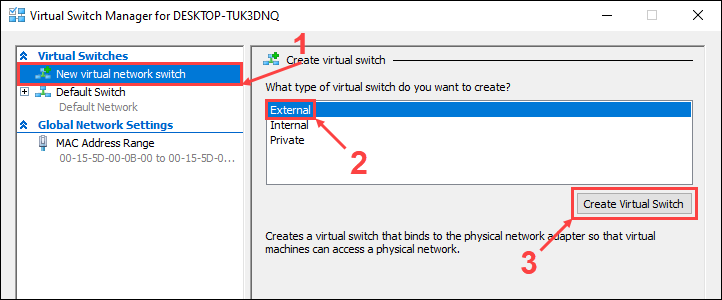
3. In the Virtual Switch Manager window, select the New virtual network switch option on the left-hand side. Set the virtual switch type to External and click Create Virtual Switch.
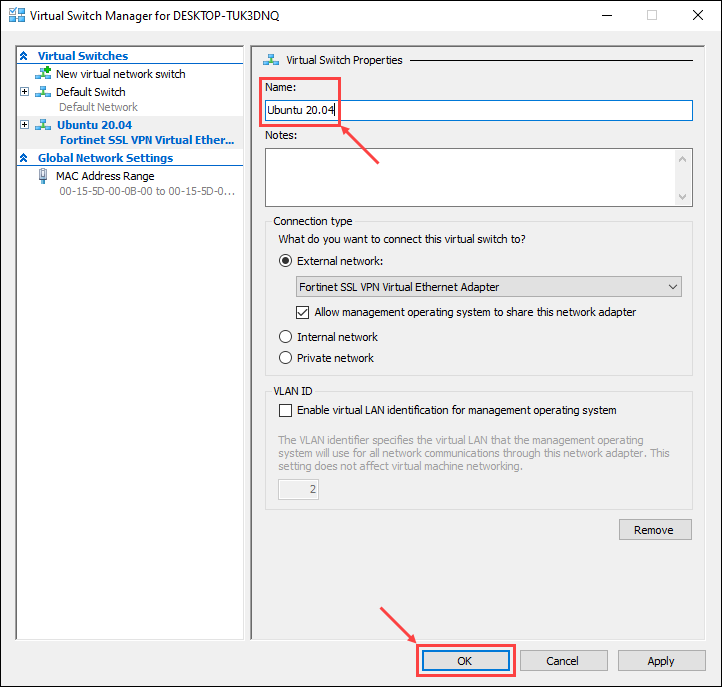
4. Enter a name for the new virtual switch. In this example, we will be using Ubuntu 20.04. Click OK to finish setting up the virtual switch.
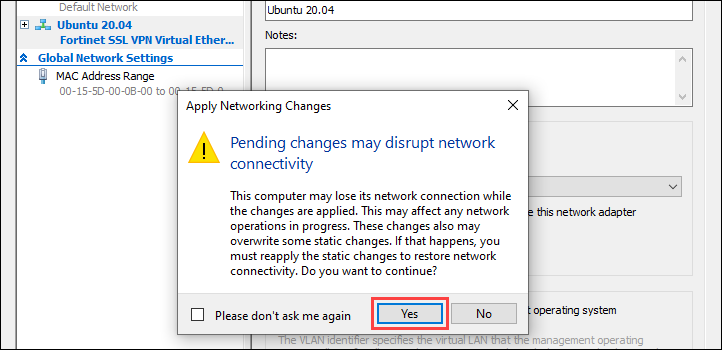
5. A new window might appear prompting you to apply network changes. Click Yes to confirm.
STEP 4: Install Ubuntu 20.04
Hyper-V offers two options when creating a new virtual machine:
- The Quick Create option lets you use a wizard to automatically download an operating system and install it on a virtual machine.
- You can also manually set up a new virtual machine and install an operating system from your hard drive or external media.
We will go over the process of installing Ubuntu 20.04 using both options:
Quick Create
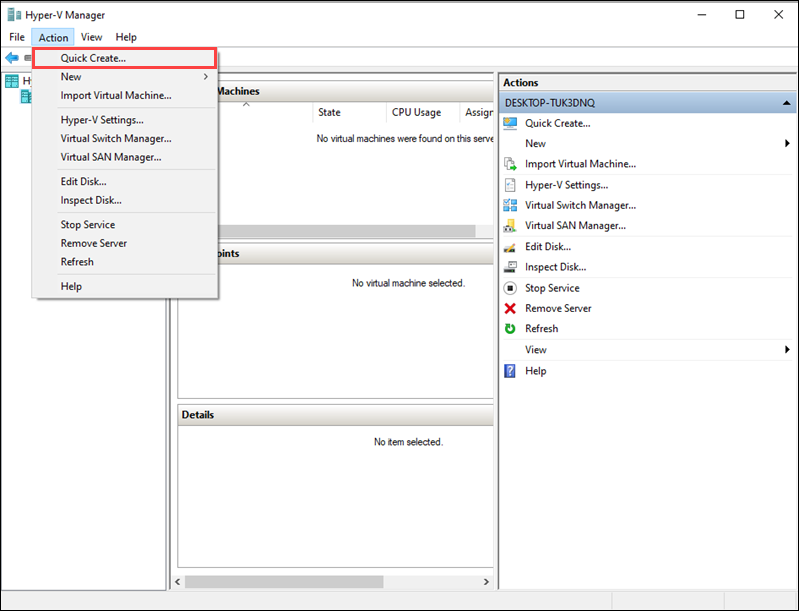
1. In the Action drop-down menu, click Quick Create to start the quick create wizard.
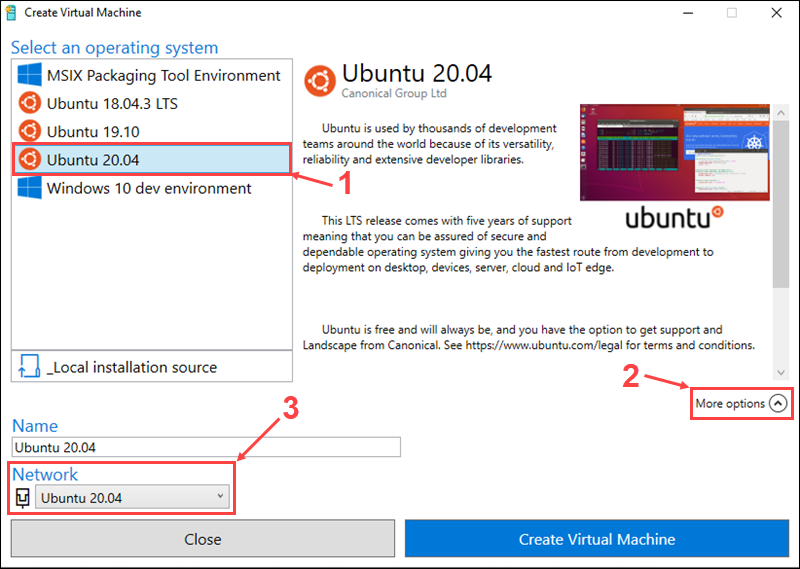
2. On the left-hand side, select Ubuntu 20.04 from the list of operating systems.
3. Click More options to set up a name for the new virtual machine and select the Ubuntu 20.04 virtual switch in the Network menu.
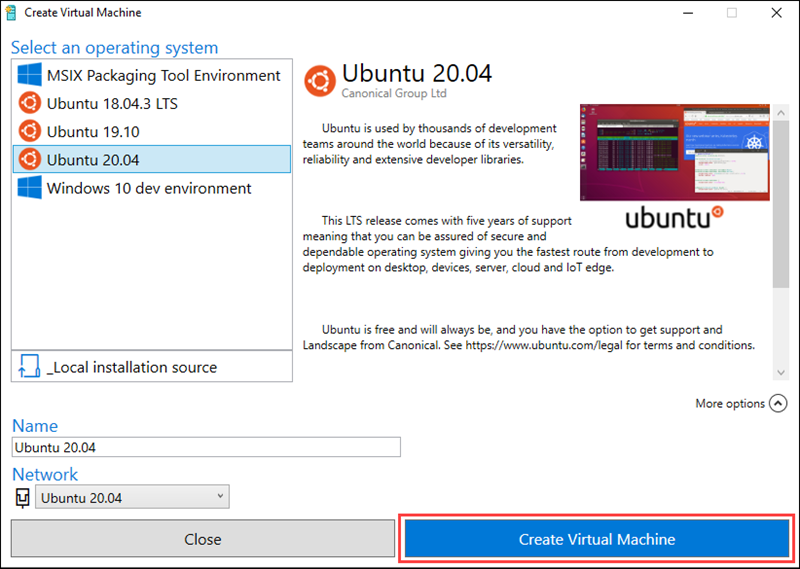
3. Click Create Virtual Machine to start the setup process. Hyper-V will automatically download and install Ubuntu.
4. Once the installation is done, use the Connect button to start up your virtual machine or the Edit settings… button to change settings.
Manually
1. Before you start setting up a new virtual machine, download the Ubuntu 20.04 installation image from the official Ubuntu website.
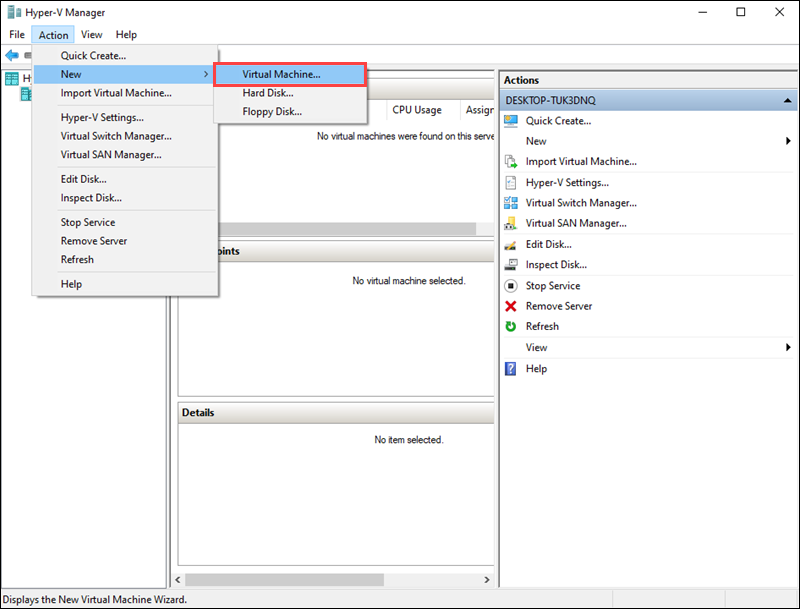
2. In the Action drop-down menu, select New and click Virtual Machine.
3. In the New Virtual Machine Wizard, click Next to start setting up the new virtual machine.
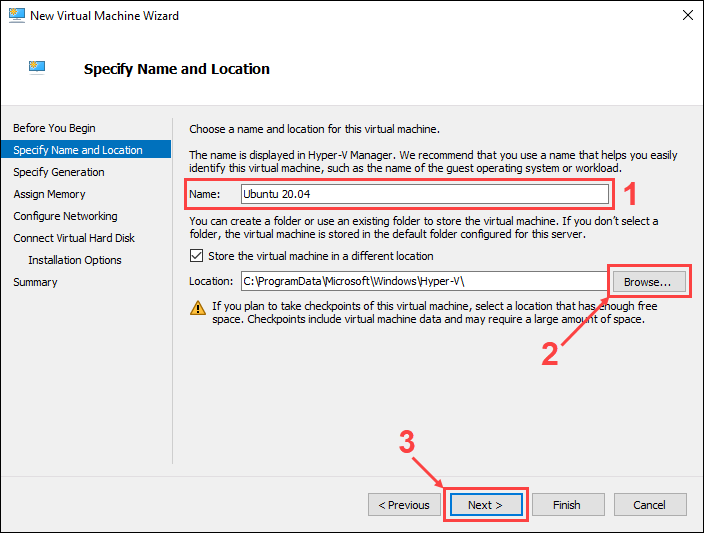
4. Choose a name and install location for the new virtual machine, then click Next to proceed.
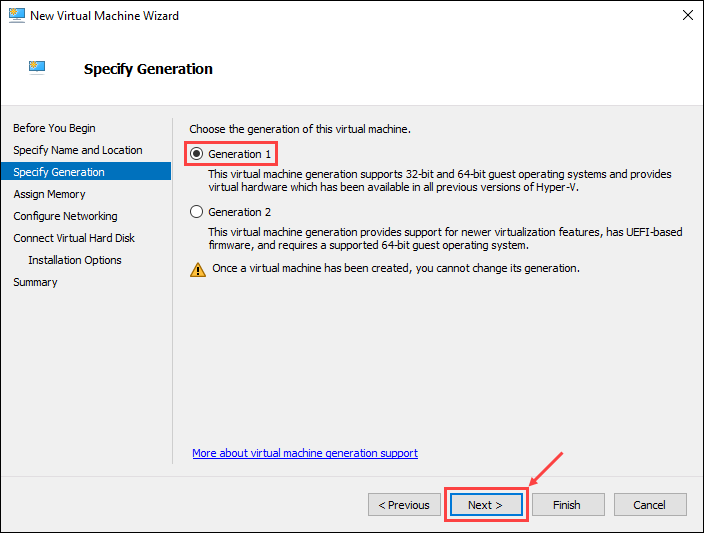
5. Choose the generation for the new virtual machine, then click Next.
Note: Learn the difference between type 1 and type 2 hypervisors in our article What is a Hypervisor.
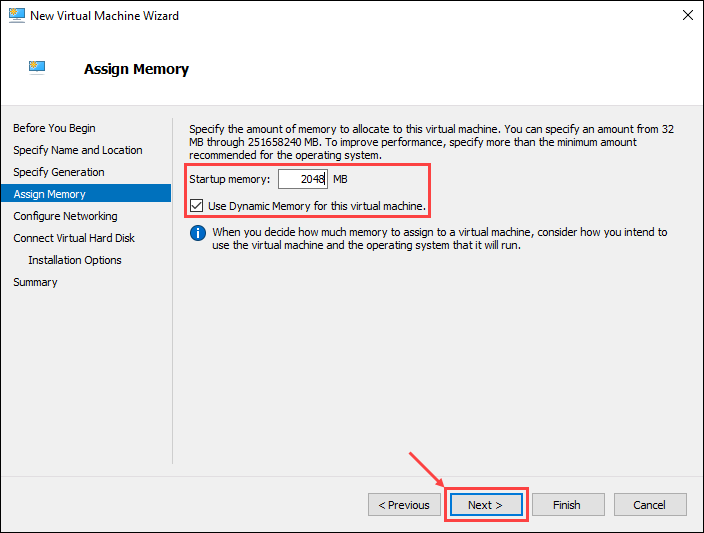
6. Assign the amount of memory to allocate to the virtual machine. Use at least 2 GB of memory and enable the use of dynamic memory. Click Next to continue.
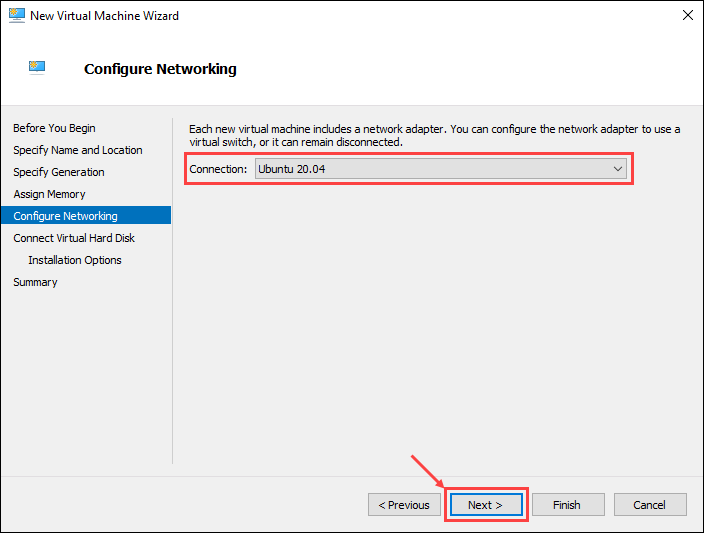
7. Choose Ubuntu 20.04 as the virtual network switch, then click Next.
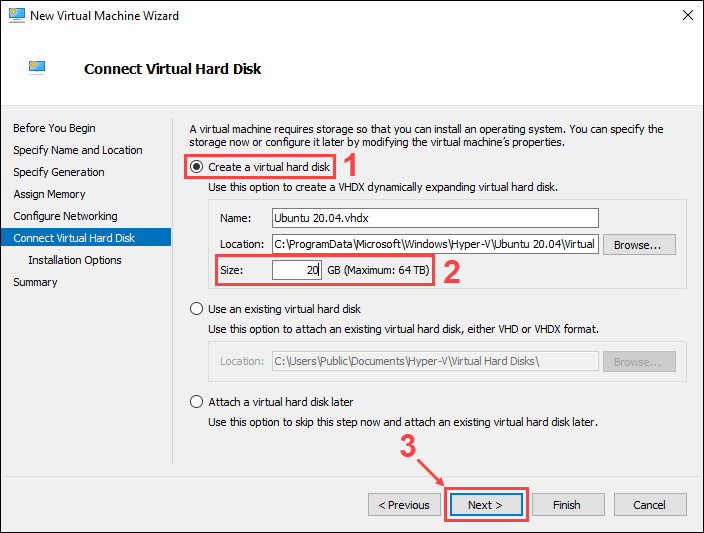
8. Use the Create a virtual hard disk option to create a new hard disk for the virtual machine. Assign at least 20 GB of hard disk space and click Next to continue.
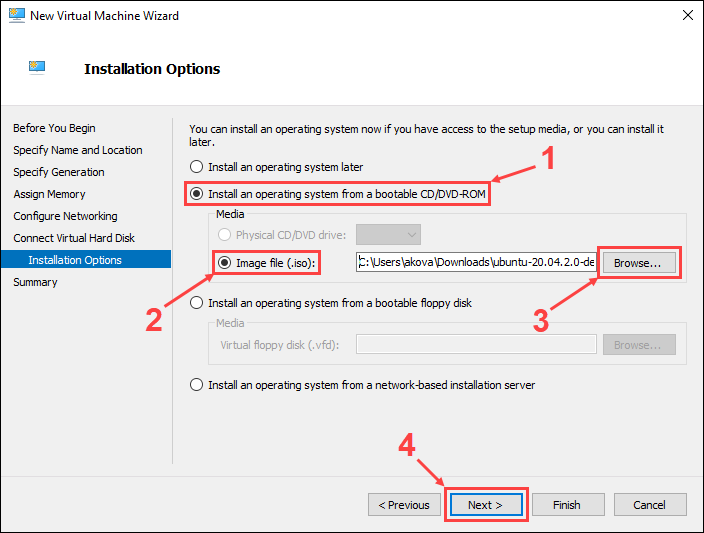
9. Under the Install an operating system from a bootable CD/DVD-ROM option, choose Image file (.iso) and select the Ubuntu image you downloaded previously. Click Next to continue.
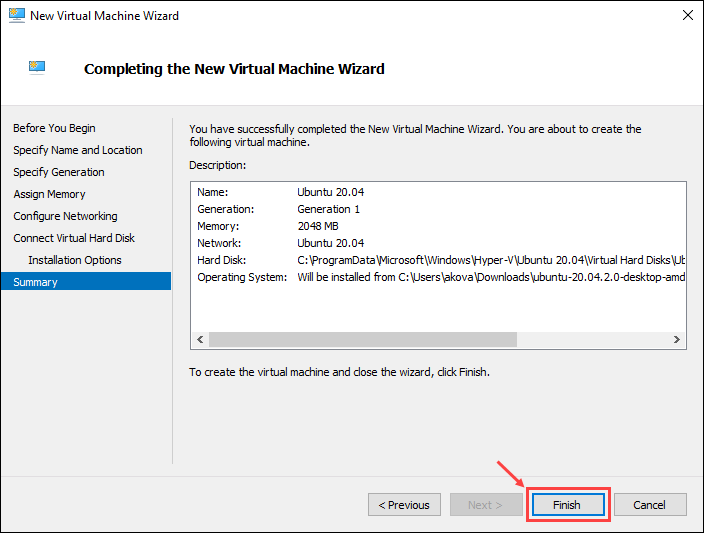
10. The final step offers a summary of the new virtual machine setup. Click Previous to make any changes or click Finish to create the virtual machine.
STEP 5: Start the Virtual Machine
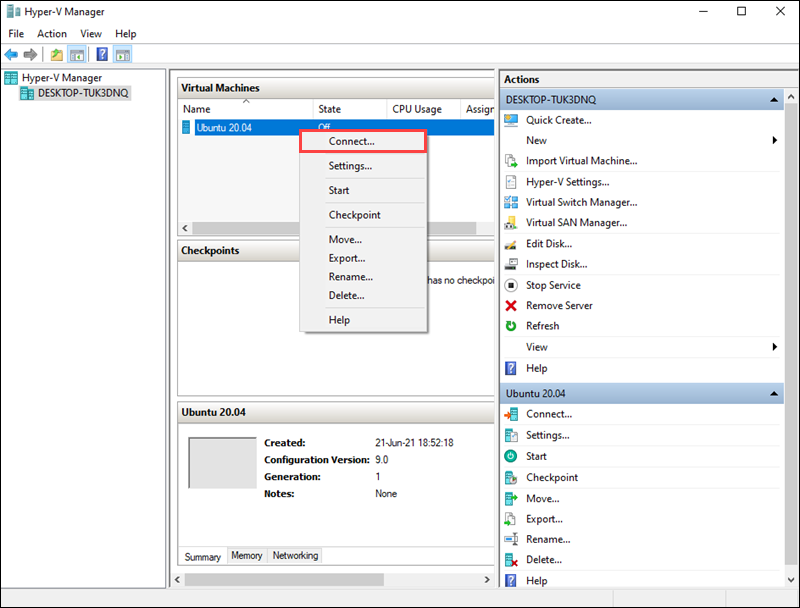
The new virtual machine appears in the Hyper-V Manager window. Right-click on the virtual machine name and click Connect to start it up.
Note: Learn how to create a Windows 11 virtual machine using Microsoft Hyper-V.
Conclusion
After following this tutorial, you should have Hyper-V enabled, and a new virtual machine with Ubuntu 20.04 installed and ready to use.
